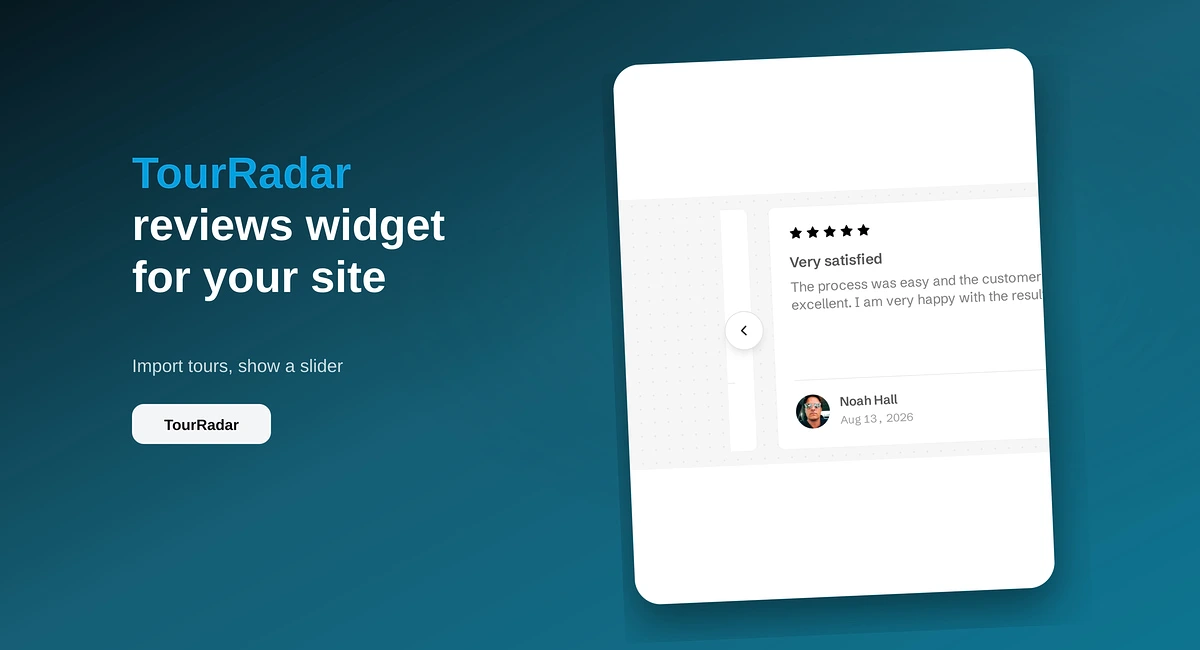
TourRadar Reviews Widget for Your Website
Put TourRadar operator reviews on your direct booking site with ReviewsJet. Chrome extension import, publish, and embed a slider widget.
Send customers to Google, Trustpilot, or Yelp with one ReviewsJet form link. Import those reviews and show them on your site.
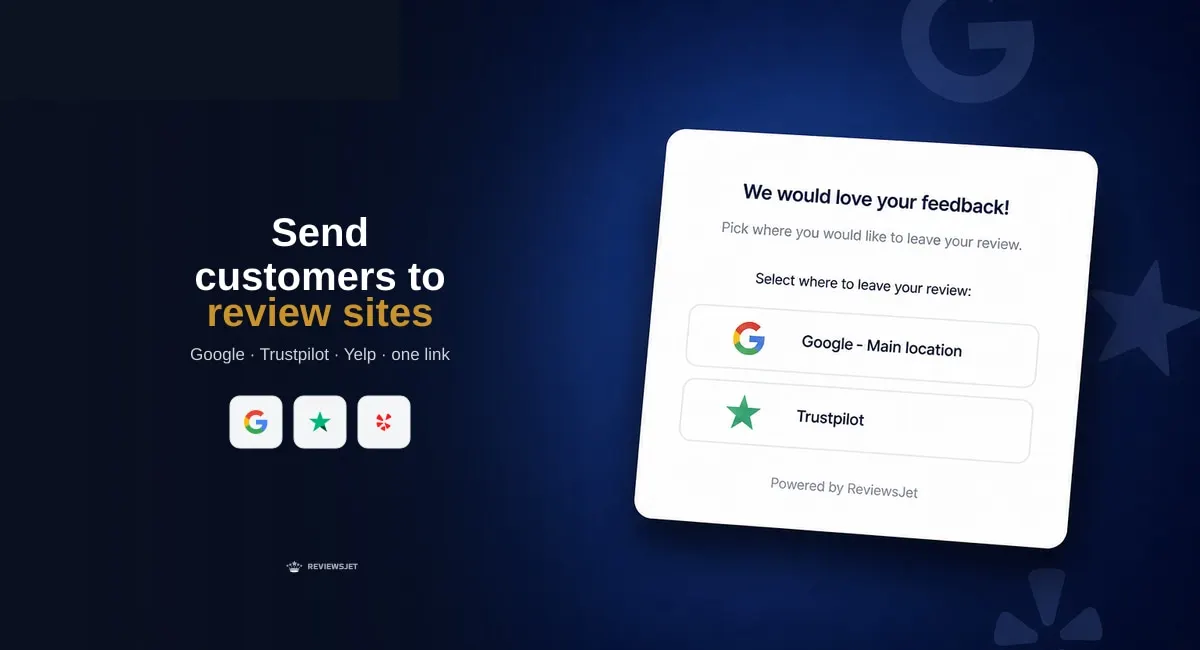
Asking for reviews works better when customers land on the platform they already trust. ReviewsJet can send people to Google, Trustpilot, Yelp, and other connected sites with one branded form link. Turn on Use external review sites on the Welcome screen, share the link after a purchase or visit, and the customer finishes the review on that platform. The same source connection also imports reviews for your widgets.
Many shoppers trust a Google or Yelp profile they already know. A private form-only review helps your site, but it does not grow the public listing that shows up in search and Maps.
Sending people to the platform does two things at once:
That is the practical loop: ask, publish externally, import, show on your pages.
In ReviewsJet, open Collect and add the sources your customers use. Google, Yelp, TripAdvisor, Airbnb, and Trustpilot connect with a public page URL. Marketplace sources like Etsy, AliExpress, Amazon, and TourRadar can come through the Chrome extension. Manual reviews remain available when someone writes to you directly.
You need the source connected before the external form path has a clear destination.
Create a review form (or open an existing one). On the Welcome screen, turn on Use external review sites. That toggle tells the form to route the customer to the connected platforms instead of keeping the whole flow inside a typed ReviewsJet review only.
Keep the Welcome copy short. Thank them, say it takes a minute, and let the buttons do the rest.
Copy the form link and send it after a good moment: delivery confirmation, checkout thank-you page, follow-up email, or QR code at the counter. One branded ReviewsJet link is easier to remember than juggling separate Google and Yelp URLs in every message.
Customers open the link, pick the site, and finish on Google, Trustpilot, Yelp, or another connected platform. You are not asking them to learn a new review website first.
The same source connection that powers external routing also supports imports. When new reviews appear on Google or another platform, bring them into ReviewsJet, publish the ones you want on your site, and place a widget.
A popup widget is a light way to keep proof available after the ask campaign starts working.
Widgets are unlimited on Free, Professional, and Advanced. Limits sit on published reviews, monthly requests, sources, and forms. Details stay on pricing.
If you mainly need the external ask link plus a small widget, Free or Professional is usually enough. Move to Advanced when request volume or source count grows.
Connect the platforms your customers already use, enable Use external review sites on the Welcome screen, and share one link after happy moments. Then publish the best imports on your site with a widget. Start free, and upgrade on pricing when monthly requests or published reviews need more room.
Import the reviews your customers already left, choose the ones worth showing, and put them on your site. The free plan does not ask for a card.
Put TourRadar operator reviews on your direct booking site with ReviewsJet. Chrome extension import, publish, and embed a slider widget.
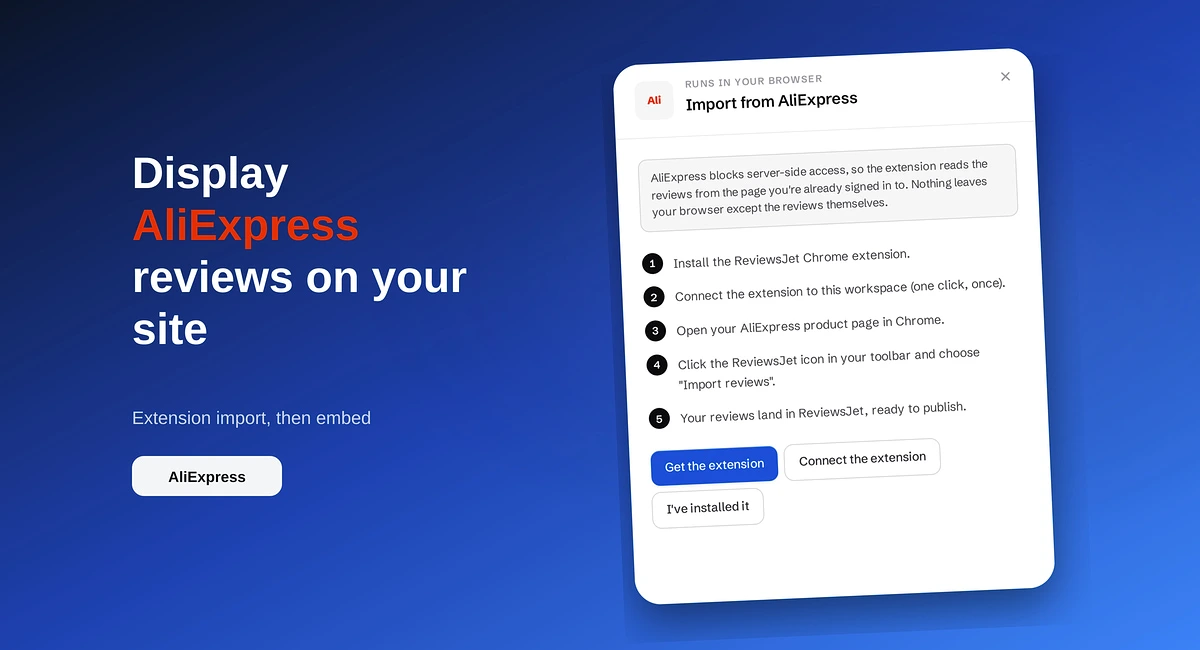
Import AliExpress product reviews with the ReviewsJet Chrome extension, publish photo reviews, and embed a masonry widget on your site.
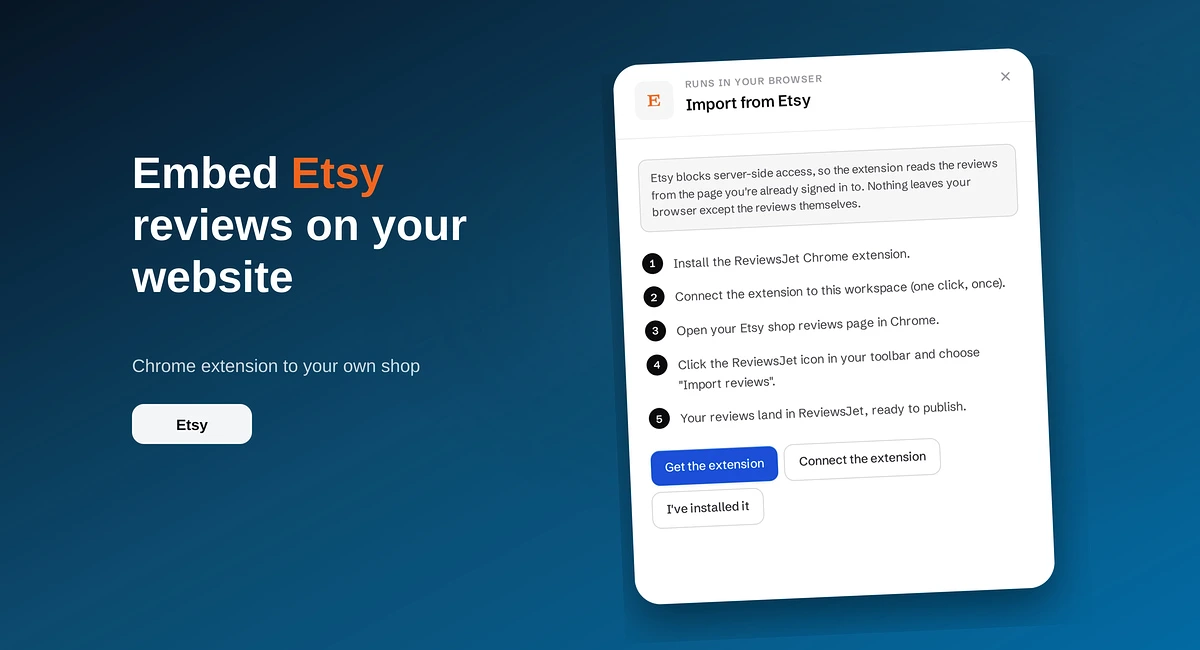
Use the ReviewsJet Chrome extension to bring Etsy shop reviews into your library, then embed a grid widget on your own site.