
How to Display Google Reviews on a Framer Website
Display Google reviews on Framer with the ReviewsJet plugin. Search for your business by name, publish a short set, and Add to page on the canvas.
Display Google Play reviews on your site. Paste the Play Store listing into ReviewsJet, publish a short set, and embed a widget.
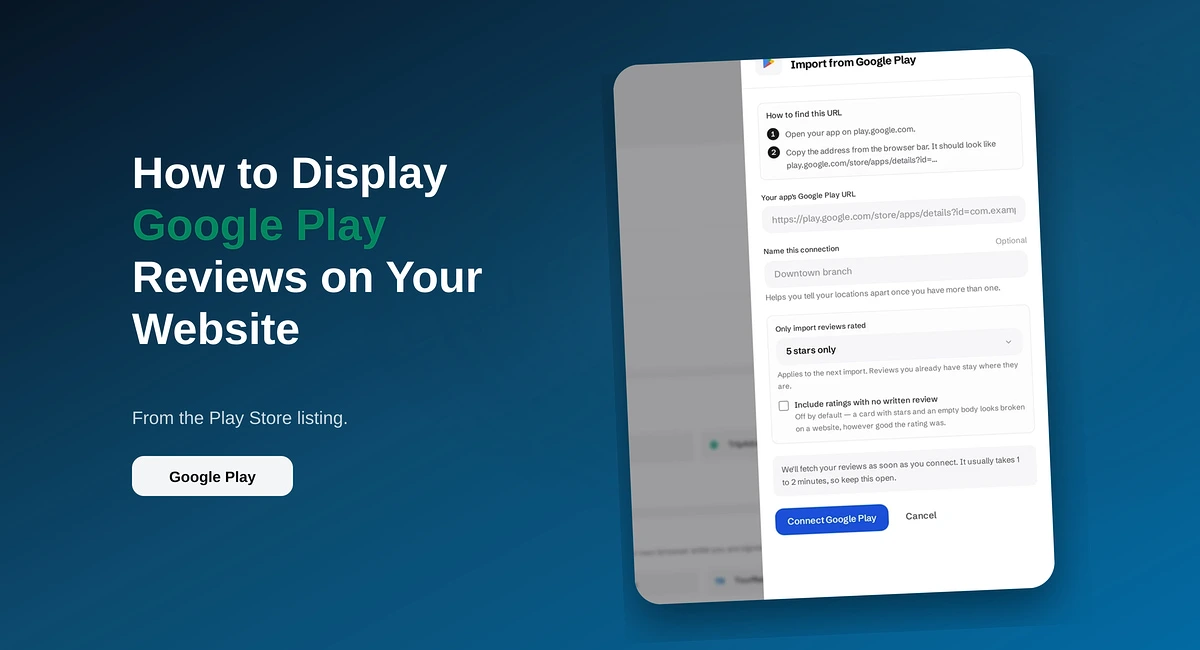
You display Google Play reviews on your website by pasting your app's Play Store URL into ReviewsJet, publishing the reviews you want, and embedding a widget. The same published set can go on WordPress, Framer, Wix, Webflow, or a plain HTML page.
People who find your app through search often land on your site first, then decide whether to open the store. The star rating on Play is one click away. The sentences are not, unless you put them on the page they are already reading.
Open your app on play.google.com. Copy the address from the browser bar. It should include id= and your application id. A search page or the developer console will not import reviews.
In ReviewsJet, open Collect and choose Google Play. Paste the listing URL.
Wait until the import finishes before you leave the panel. It usually takes a minute or two.
Open Reviews. Publish reviews that name a feature, a fix, or how the app is used. Leave "nice app" unpublished if you have better lines. Five specific reviews beat twenty that say the same thing.
In Display, choose a layout and open Add to your site.
A marquee is a thin band for a homepage that already has a headline and a download button.
Where the code goes depends on the site:
play.google.com/console is where you reply and read stats. ReviewsJet cannot import from it. The address that works is the public store page, with id= and the application id. A search page misses in the same way. Open the app the way a visitor would, then copy the bar.
Publishing a review in ReviewsJet shows it on your site. It does not hide it on Play, and it does not send a reply to the person who wrote it. Answer them in the Play Console if you need to. The site gets a copy of the sentences you chose. The connect screen starts at 5 stars only, and lowering that applies to the next import. Reviews already saved stay as they are.
Three ordinary causes. The reviews are still unpublished, so the widget has nothing it is allowed to show. The URL was the console or a search, so the import saved nothing. Or the panel was closed before the first import finished, which usually takes a minute or two.
A marquee is the thin band under a download button. A grid is the layout when the page should be read. Pick one. iOS reviews are a different listing. The country in the App Store URL decides which reviews you import. That is How to Display App Store Reviews on Your Website.
Paste the Play Store listing, publish a short set, and place one widget on the page that asks for the install.
Import the reviews your customers already left, choose the ones worth showing, and put them on your site. The free plan does not ask for a card.
Display Google reviews on Framer with the ReviewsJet plugin. Search for your business by name, publish a short set, and Add to page on the canvas.
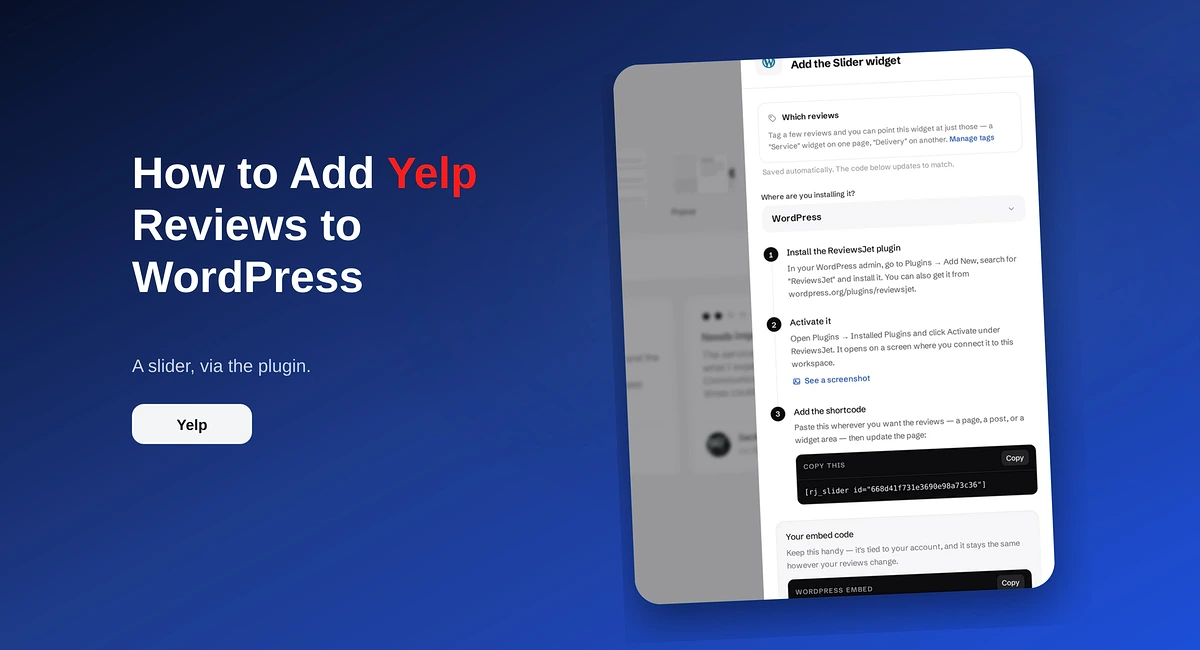
Add Yelp reviews to WordPress with the ReviewsJet plugin. Connect your Yelp page, publish a short set, and place the slider shortcode.
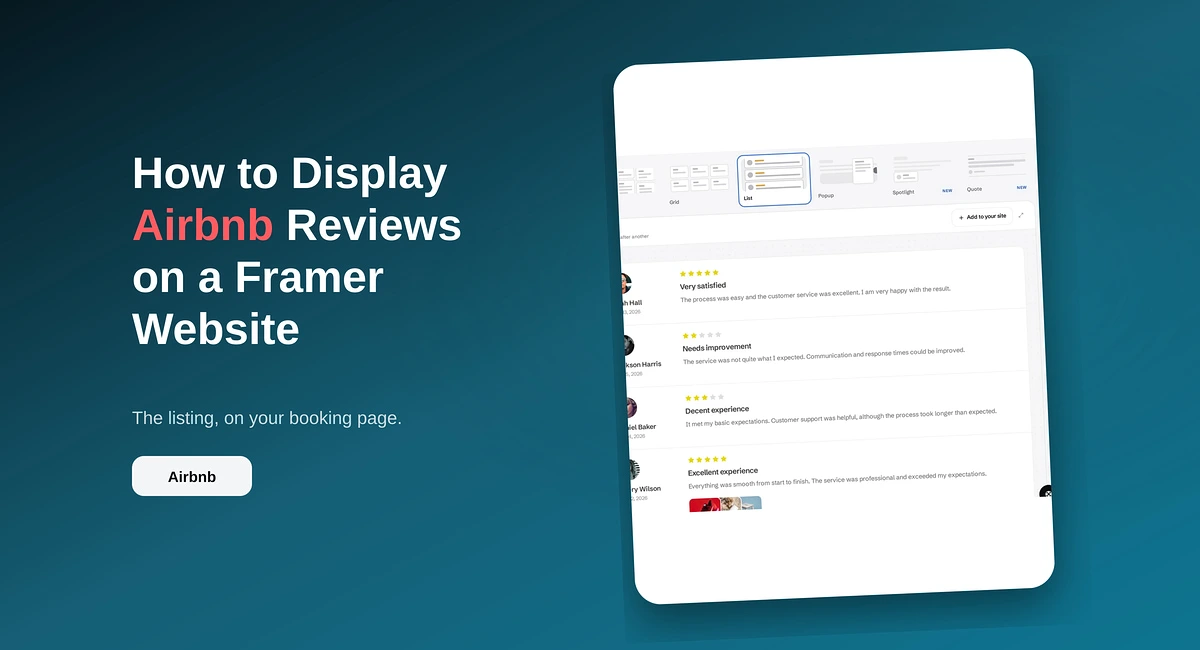
Show Airbnb reviews on a Framer booking page. Connect the listing URL, publish the stays for that home, and Add to page a List.