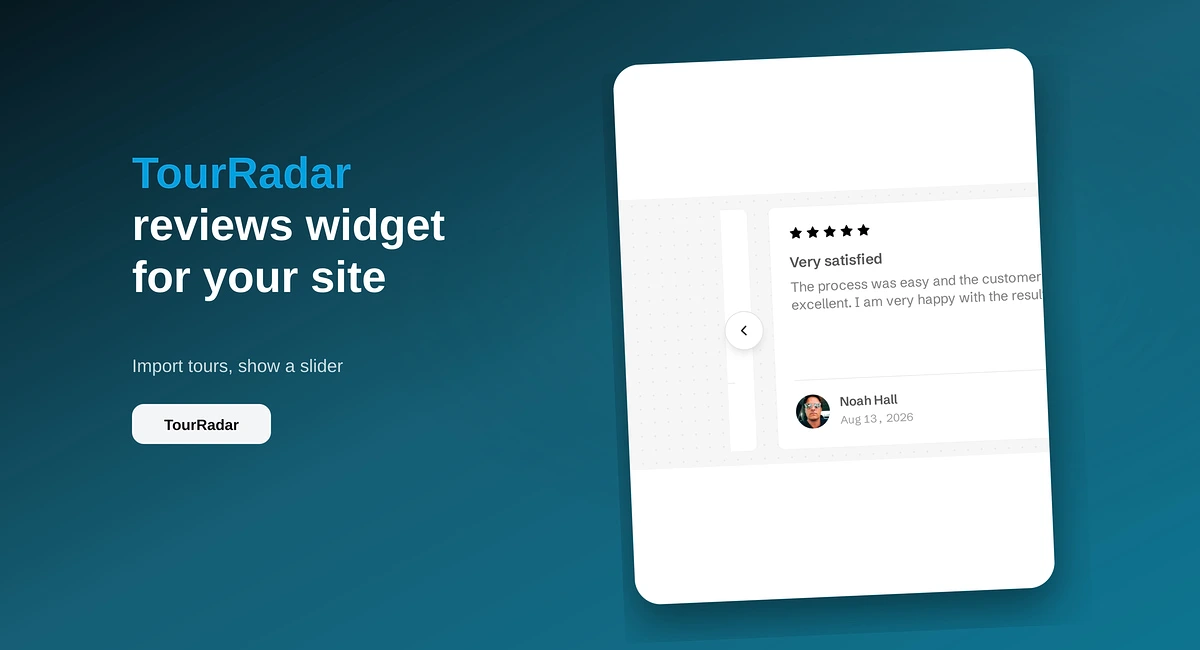
TourRadar Reviews Widget for Your Website
Put TourRadar operator reviews on your direct booking site with ReviewsJet. Chrome extension import, publish, and embed a slider widget.
Add Google reviews to WordPress with a plugin shortcode. Connect your Business Profile in ReviewsJet, pick a layout, paste the code. No Places API key.

Google does not give WordPress a native reviews block. You add Google reviews by connecting your Google Business Profile in a tool like ReviewsJet, then dropping a plugin shortcode on the page. Skip a Custom HTML script tag. Themes and security plugins often strip it, so the widget never appears.
[rj_slider]. Do not put a script tag in a Custom HTML block.Google keeps Business Profile reviews on Google. There is no official “copy this widget into WordPress” button, and a Maps embed only shows a map, not a review wall you control. WordPress also has no built-in Google reviews block. That is why every working setup uses a plugin, a hosted widget, or the Places API.
A screenshot of a five-star Google listing does not update when the next review lands. Hand-typing quotes into a testimonial block also goes stale. A live widget pulls the reviews you publish and keeps the layout on your homepage, service pages, or footer.
If you want the same reviews on a site that is not WordPress, the same ReviewsJet account can display Google reviews on any website. WordPress is the one platform where the install path is a shortcode, not a script tag.
The fastest reliable path is a dedicated plugin plus a shortcode. Connect Google once, pick a layout, paste the shortcode, and update the page. You do not create a Google Cloud project or a Places API key. ReviewsJet fetches the listing from the public Google Business Profile or Maps URL you paste in.
Other methods exist. They cost more time or they fail quietly.
Create a free account at app.reviewsjet.com, connect Google as your source, then follow the plugin steps below. Free lets you publish 5 reviews from 1 source and still create unlimited widgets.
Open ReviewsJet, add Google as a connected source, and paste your Google Business Profile or Maps URL. ReviewsJet fetches the reviews server-side. You then choose which reviews to publish. Only published reviews appear in the WordPress widget.
On Free you get 1 review source, so Google can be that source. Professional ($7.99/month) raises the cap to 2 sources and 150 published reviews. Advanced ($19.99/month) is the recommended plan: 1,000 published reviews, unlimited sources, auto-publish by rating, and automatic daily sync. See pricing for the current limits. New paid workspaces get a 14-day trial.
You cannot reply to imported Google reviews from ReviewsJet. Replies to Google reviews still happen in Google’s own dashboard. Replies in ReviewsJet work for reviews collected on a ReviewsJet form or typed in by hand.
Install “ReviewsJet” from Plugins → Add New, activate it, then paste the shortcode from Get the code. That is the whole WordPress-specific step. The plugin exists because a script tag in a Custom HTML block is stripped by a great many themes and security plugins, and the widget then renders nothing.
The code never changes. Reviews you publish later appear automatically, with nothing to reinstall.
Paste the shortcode from Get the code into a Shortcode block, a page builder shortcode widget, or any widget area that accepts shortcodes. Gutenberg, Classic Editor, and Elementor all accept it. After you update the page, view the live site (not only the editor canvas) to confirm the reviews render.
Example slider shortcode shape:
[rj_slider id="YOUR_ID" count="3"]
Other layouts use [rj_marquee], [rj_masonry], [rj_grid], and [rj_list]. The id is your workspace embed id. count is how many reviews that embed asks for by default. If you later filter a widget by tags in ReviewsJet, Get the code includes a widget attribute. Copy it again rather than editing the shortcode by hand.
For a site-wide strip, put the shortcode in a footer or header widget area, or in a theme template part. For a dedicated reviews page, a masonry or grid shortcode with a higher count reads better than a three-card slider.
The popup is the exception. The plugin registers no popup shortcode. Paste the popup script before the closing body tag (Appearance → Theme File Editor, or a headers-and-footers plugin), then save. The floating tab then shows on every page without taking layout space.
Use the plugin shortcode for slider, marquee, masonry, grid, and list. Use a footer script only for the popup. Do not paste the embedded widget script into a Custom HTML block and hope WordPress leaves it alone.
If a page still looks empty after you paste a shortcode, confirm the plugin is activated and that you used the shortcode from Get the code, not an HTML snippet meant for Webflow or Squarespace.
Pick the layout for the page, not the other way around. A homepage usually wants a compact slider or marquee. A reviews page wants masonry, grid, or list. Widgets are unlimited on every ReviewsJet plan, including Free, so you can put a slider on the home page and a masonry wall on /reviews without paying for extra embeds.
Paid plans can fully customise widgets and remove ReviewsJet branding. Advanced can customise widget wording and add structured data. Google still does not treat your own Business Profile reviews as a guaranteed star snippet on your domain. Do not install a widget only to chase stars in search.
For WordPress-focused pricing context, see affordable review management with ReviewsJet for WordPress.
No. ReviewsJet connects Google with your public Business Profile or Maps URL and fetches reviews on the server. You do not create a Google Cloud project or paste an API key into WordPress.
You can paste a hosted HTML embed into a Custom HTML block, but many themes and security plugins strip the script, so the widget never shows. The ReviewsJet plugin plus a shortcode is the path that actually survives typical WordPress setups. The popup still needs a footer script.
Free publishes 5 reviews at a time, from 1 source, with 50 review request emails a month and 1 collection form. Widgets stay unlimited. Professional publishes 150 reviews from 2 sources. Advanced publishes 1,000 from unlimited sources.
Showing real Google reviews on your site builds trust for visitors. Google’s own review-snippet rules make self-serving LocalBusiness markup a poor bet for stars under your homepage. Advanced includes structured data, but it is not a promise that star rich results will appear.
Yes, once the plan allows more than one source. Free is 1 source. Professional is 2. Advanced is unlimited. Connect each source, publish the reviews, and the same widget can include them. You still install WordPress the same way: one shortcode.
Yes. Paste the shortcode into a Shortcode block, an Elementor shortcode widget, or any area that accepts shortcodes. View the published page to confirm. Some builders do not render third-party shortcodes in the canvas.
Google already collected the reviews. WordPress only needs a plugin that will not get stripped, and a shortcode on the page where people decide to call or buy. Connect your listing in ReviewsJet, install the plugin, paste the shortcode, and publish.
Import the reviews your customers already left, choose the ones worth showing, and put them on your site. The free plan does not ask for a card.
Put TourRadar operator reviews on your direct booking site with ReviewsJet. Chrome extension import, publish, and embed a slider widget.
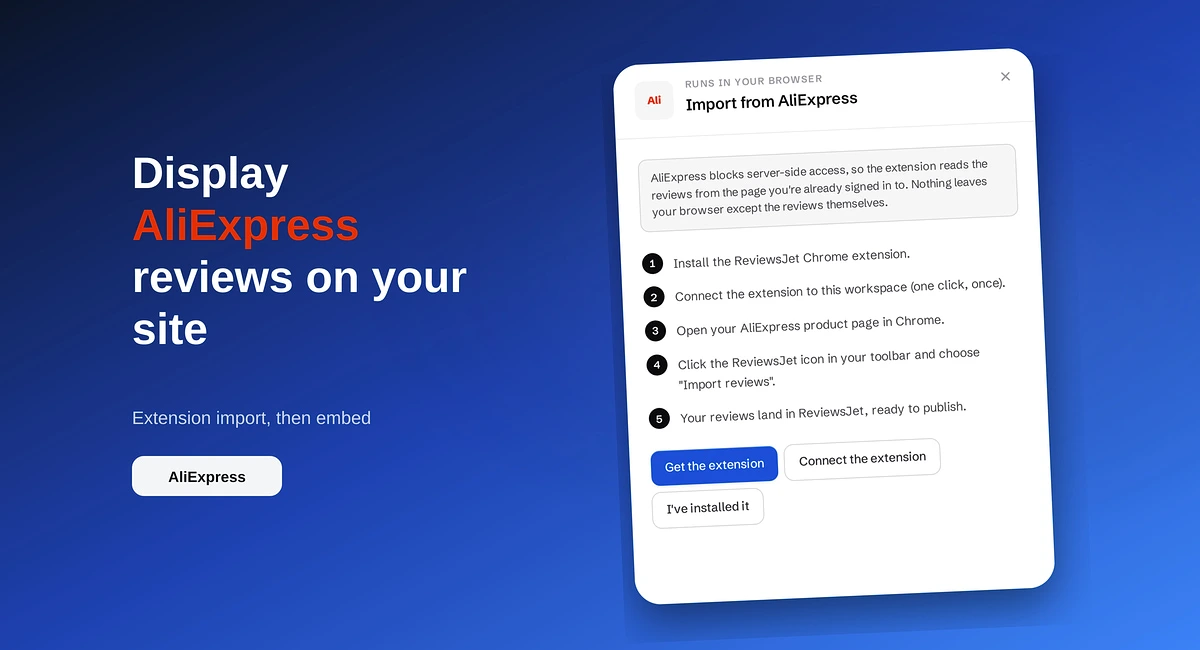
Import AliExpress product reviews with the ReviewsJet Chrome extension, publish photo reviews, and embed a masonry widget on your site.
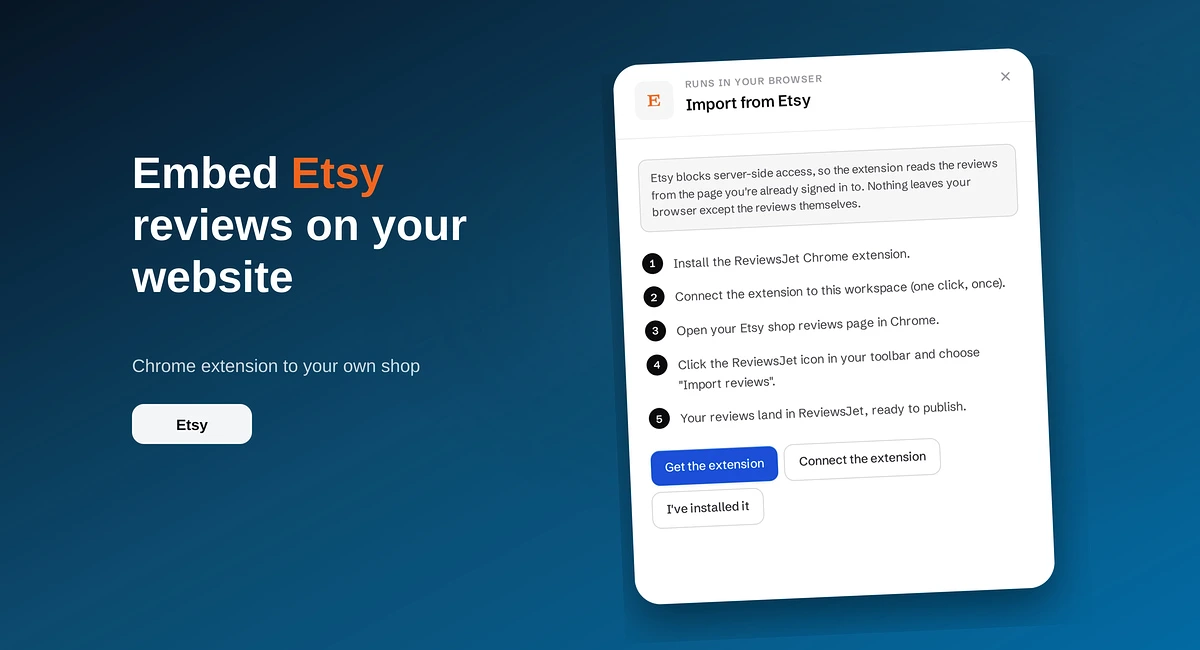
Use the ReviewsJet Chrome extension to bring Etsy shop reviews into your library, then embed a grid widget on your own site.