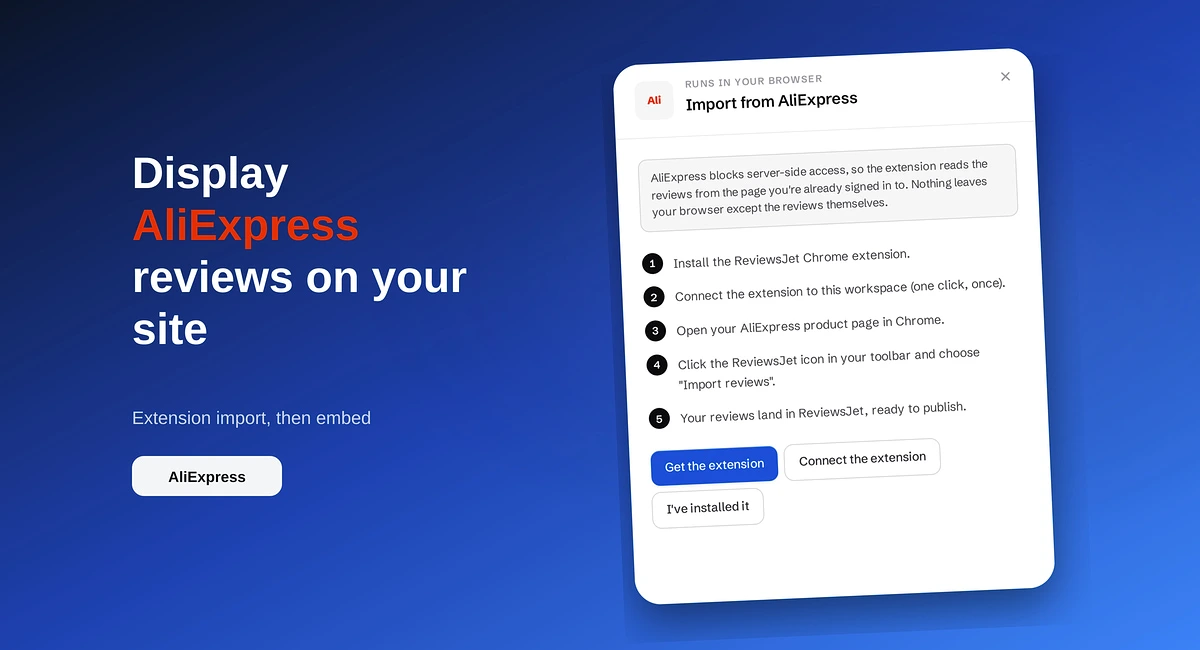
How to Display AliExpress Reviews on Your Site
Import AliExpress product reviews with the ReviewsJet Chrome extension, publish photo reviews, and embed a masonry widget on your site.
Add Google reviews to Webflow without code: connect your listing in ReviewsJet, pick a layout, and paste the embed into your page.

You can put your Google reviews on a Webflow site without coding. Connect your Google Business Profile in ReviewsJet, publish the reviews you want visitors to see, then paste a Webflow embed from Get the code. The widget can sit on a homepage, service page, or dedicated reviews section so trust shows up next to the CTA.
People often check Google before they buy. If your Webflow page has no reviews, they leave to go look, or they bounce. Putting a few strong Google reviews on the page keeps that proof in the same place as your offer.
It also helps conversions in a practical way. Stars and short quotes reduce doubt on pricing pages, booking pages, and service landing pages. SEO benefit is secondary here. The main win is trust where the click happens.
Open Collect, go to Sources, and add Google. Paste your Maps or Business Profile link. You can limit which ratings import, and you can skip reviews with no written text so empty cards do not show up later.
The first fetch usually takes a minute or two. Leave the panel open until it finishes.
Importing stores reviews in your account. Publishing is what makes them available to widgets. Open your Google reviews, select the ones you want on Webflow, and publish them.
Free allows 5 published reviews. Professional raises that to 150. Advanced goes to 1000. Check pricing if you need more room.
Open Display and pick a layout that fits the page job. For this Google-to-Webflow path, a grid is a clean default on a reviews section. A slider is better if you want a compact strip near the top of a landing page.
You can change the layout later without reconnecting Google.
Click Get the code and choose Webflow. Follow the steps in the panel. Copy the embed snippet for that widget.
No custom JavaScript skills are required for this flow. Stay inside the Embed element Webflow already provides.
Open the published URL in a private window. Confirm the widget loads, the star ratings look right, and only published reviews appear. If the area is blank:
Widgets are unlimited on every plan. Limits apply to published reviews, monthly review requests, sources, and forms. Free is enough for a small Google proof strip. Professional ($7.99/mo or $79.99/yr) fits most small sites that need more published reviews. Advanced ($19.99/mo or $199.99/yr) is for higher volume. Paid plans include a 14-day trial. Numbers stay on pricing.
If you later want Yelp or other platforms in the same widget, you can add sources without changing the Webflow embed pattern. For that broader path, read Effortless review management for Webflow. For Google reviews on any site type, see Display Google reviews on your website.
Connect Google, publish a short set of strong reviews, and place the Webflow embed on the page that asks for the sale. You can start on Free and upgrade when the published-review limit gets tight.
Import the reviews your customers already left, choose the ones worth showing, and put them on your site. The free plan does not ask for a card.
Import AliExpress product reviews with the ReviewsJet Chrome extension, publish photo reviews, and embed a masonry widget on your site.
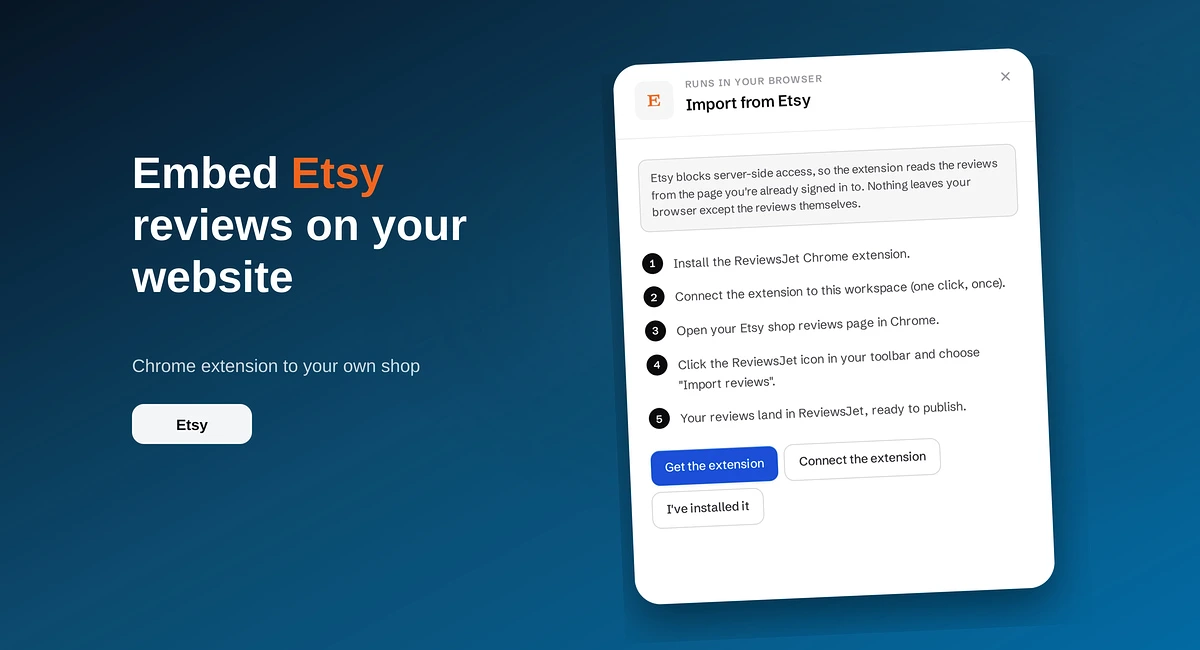
Use the ReviewsJet Chrome extension to bring Etsy shop reviews into your library, then embed a grid widget on your own site.

Add reviews to your website where people decide: homepage, product pages, services, and pricing. Build trust and sales with real customer proof.